· Tutorials · 3 min read
What Is an ICC Profile? A Practical Explanation
What an ICC profile actually is, what it describes about your monitor, when to install a .icc file, and when you should never apply one screen's profile to another. A practical explanation for people who actually use this stuff.
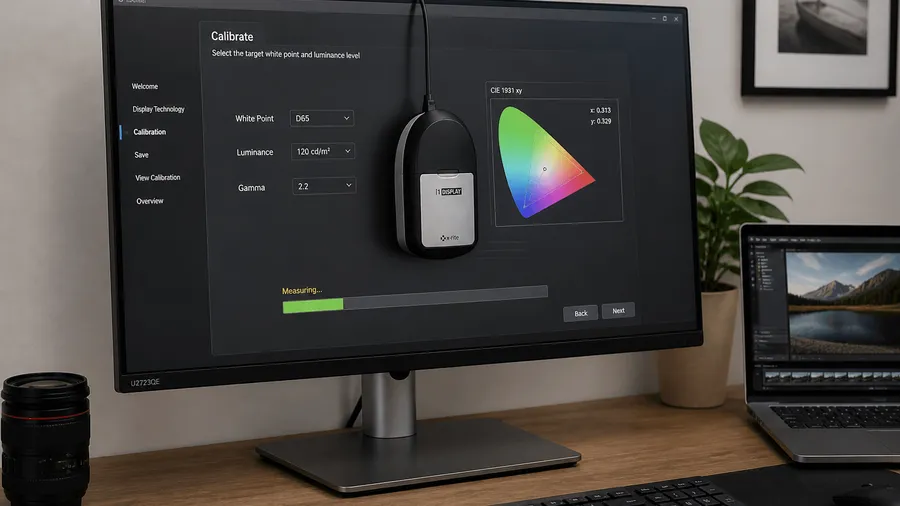
Open the box on a new Dell U2723QE and there’s a .icc file on a USB stick inside — the factory color profile for that model. Nobody explains what it’s for, how to install it, or when you shouldn’t. This post covers what an ICC profile actually is, what it describes, and when you should absolutely not use one.
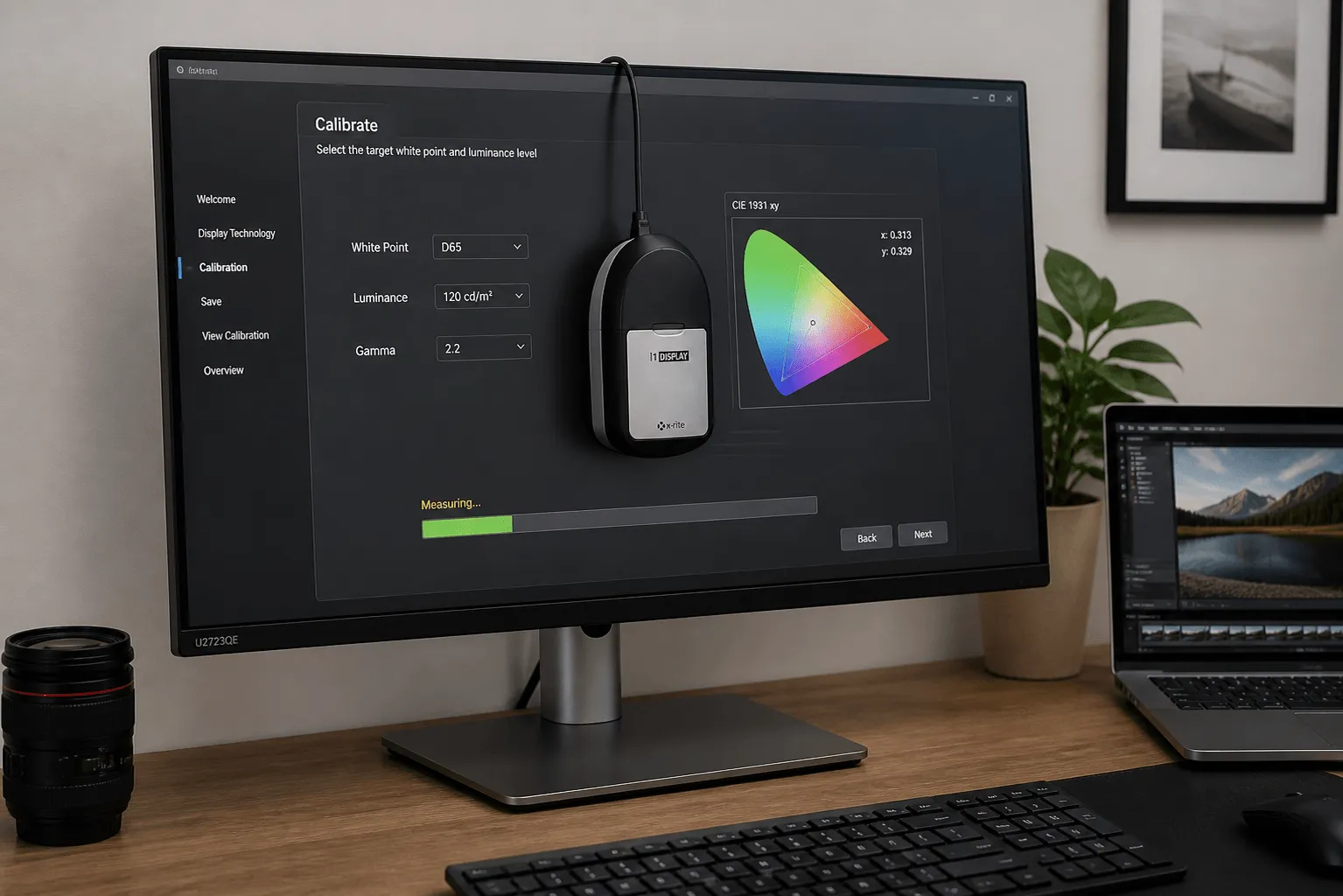
What an ICC profile is
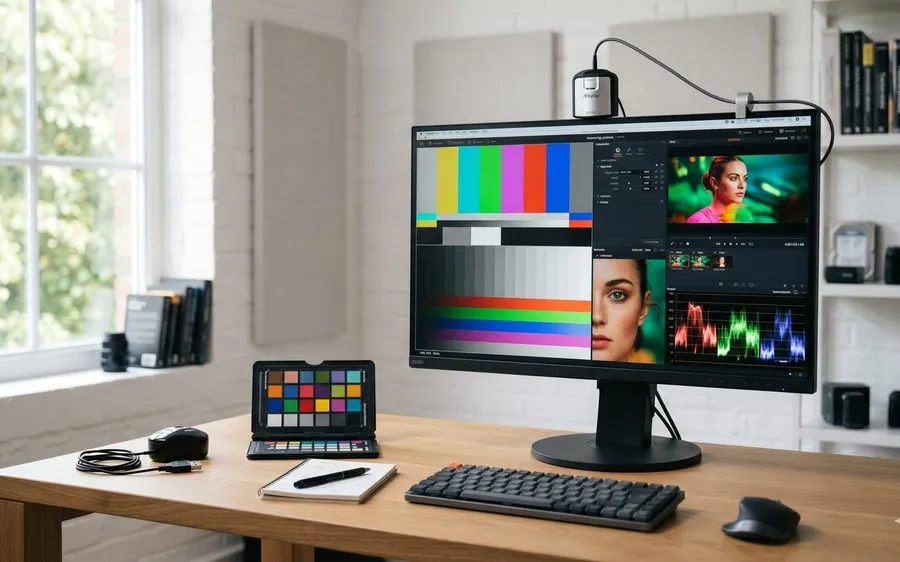
An ICC profile is a file that describes the color characteristics of a specific device at a specific point in time. It’s generated by a measurement device (a Spyder X, i1Display Pro, or similar) during calibration, recording exactly how that device responds to standard color signals. Put simply: a profile is a color “ID card” for one specific screen at one specific moment.
The operating system reads the profile to know how to adjust the signal before it reaches the screen — compensating for wherever that device is off. Without a profile, the OS sends the signal unmodified and the screen displays with its factory characteristics, which may or may not be accurate.
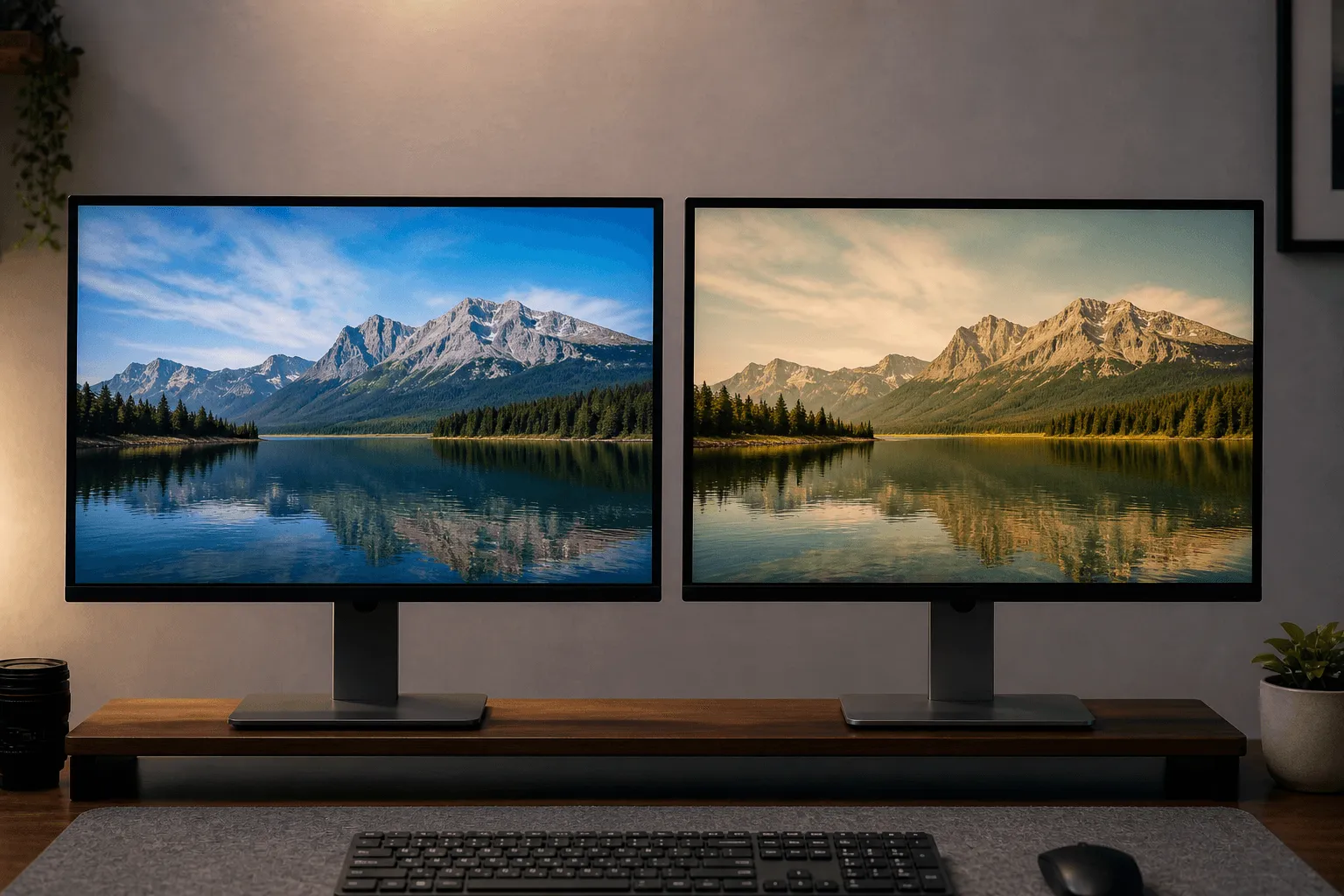
What a profile actually describes
An ICC profile file contains three main groups of parameters. Gamma determines how dark or light the midtones render — the web standard is 2.2. White point is the reference white temperature, typically 6500K (D65) for design and print work.
Gamut is the range of colors the device can reproduce — sRGB, Adobe RGB, or DCI-P3.
Beyond those three, a profile also records the delta-E of its measured points — the gap between the color actually displayed and the reference color. The gamut piece is covered in more depth in color gamut: sRGB, Adobe RGB and DCI-P3 if you want to go further.
When you should use one
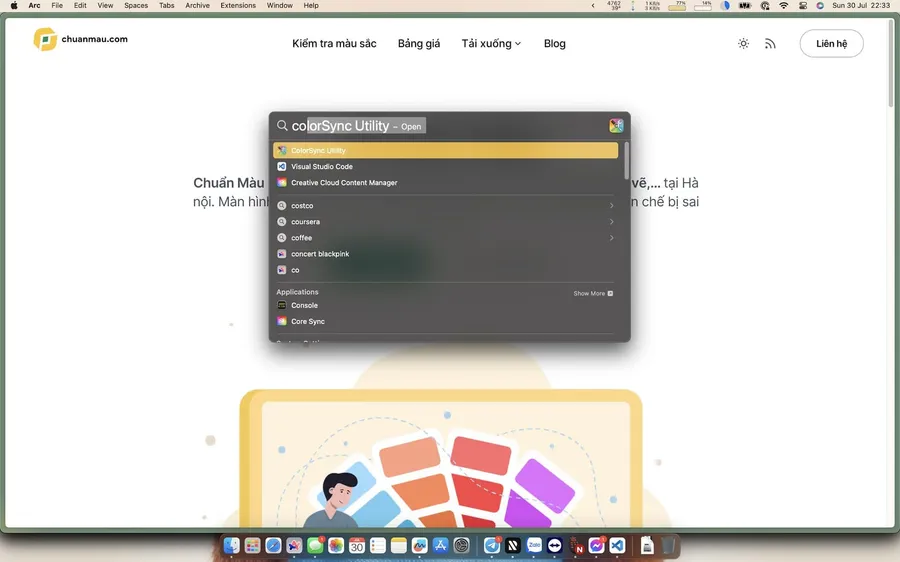
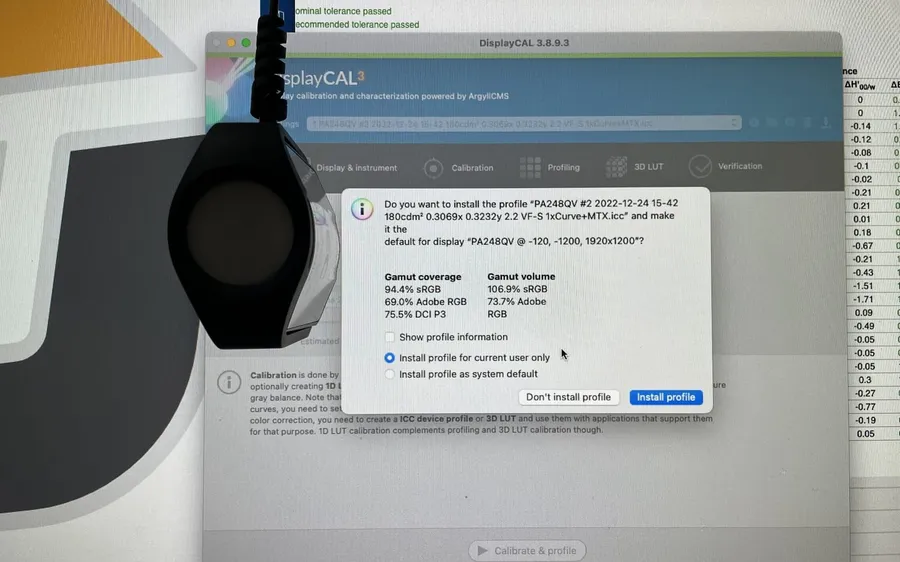
Right after a calibration session, the resulting profile has to be loaded into the OS to actually take effect. This step is mandatory, not optional — skip it and the calibration essentially didn’t happen. Step-by-step guides are here: installing an ICC profile on Windows 10 and installing an ICC profile on macOS.
The .icc file that ships with a monitor is also worth installing — it’s the factory profile, measured from a reference sample of that model. It’s better than nothing, but it doesn’t replace a profile calibrated for your specific unit.
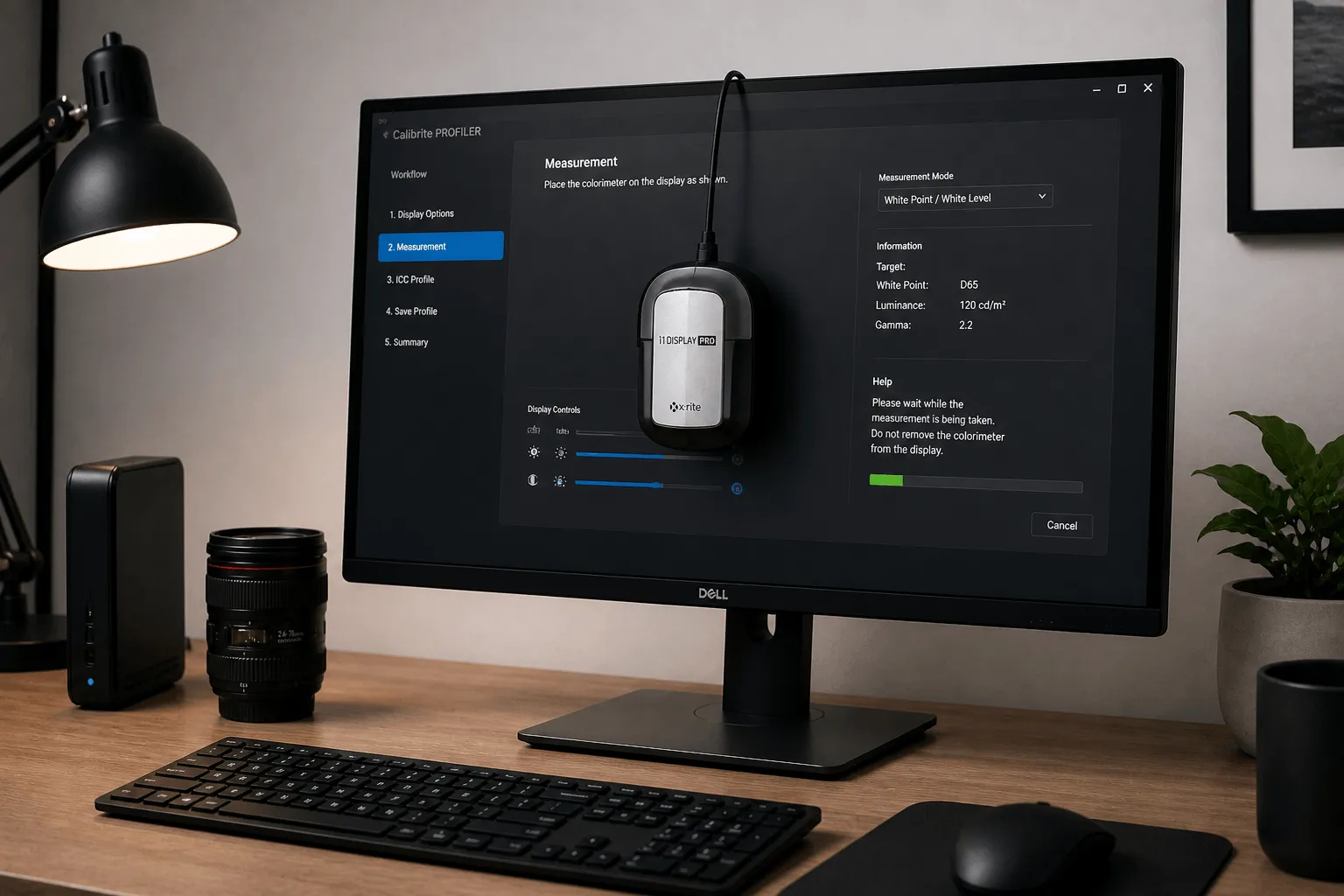
When you should NOT use one
Don’t download a profile from a different unit and apply it to yours. Two BenQ SW271s from the same batch can respond differently in color after six months, simply because the panels don’t age uniformly. Applying unit A’s profile to unit B will introduce errors that are harder to debug than having no profile at all.
Don’t use a profile older than 6 months if you’re doing offset print work or commercial photo retouching. LED panels drift in gamma and white point over time — an old profile is compensating for an error that no longer matches reality.
Don’t install multiple profiles and let the OS pick one automatically. One device, one active profile at a time — that’s the rule.
Once you understand what an ICC profile is, the next step is installing it correctly. Read the Windows installation guide or the macOS guide to apply it right away.
Don’t have a profile of your own yet? Chuẩn Màu’s calibration service measures your display with a colorimeter and exports an ICC profile for it.