· Tutorials · 1 min read
How to Install an ICC Profile on Windows 10
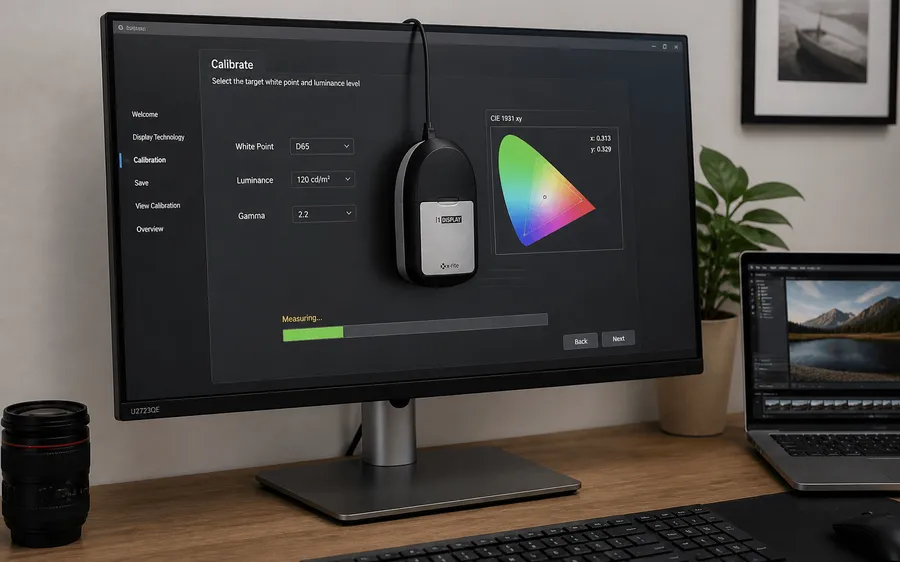
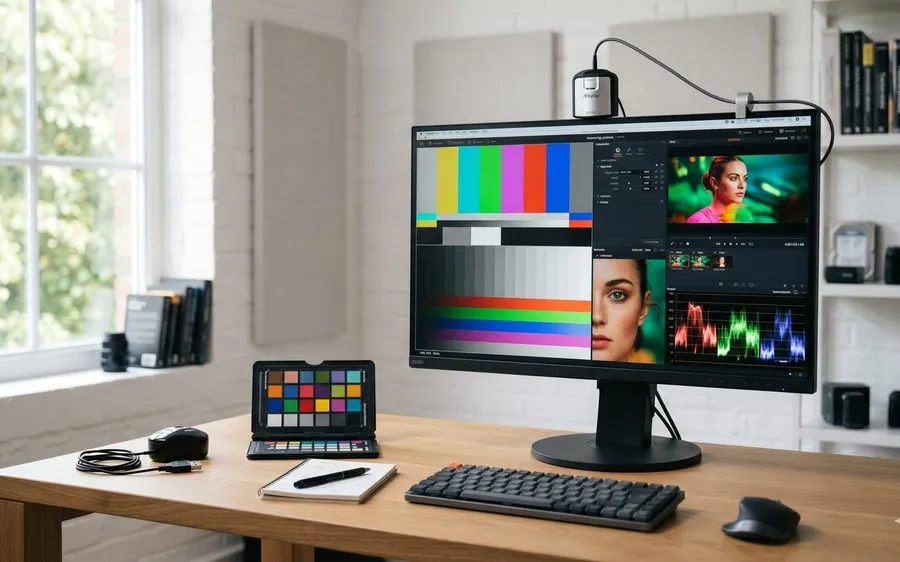
After calibrating a monitor, you get back an .icc file. Here is exactly how to install it on Windows 10 so the color profile actually takes effect.
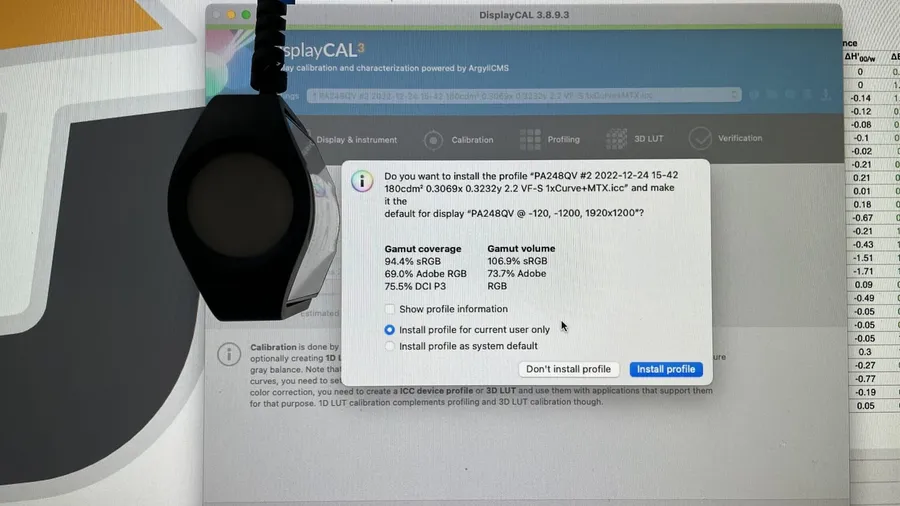
After we calibrate a monitor, we hand back a file with an .icc extension. So what is an ICC profile, and how do you actually use it?
What Is an ICC Profile?
In color management, an ICC profile is a data set that characterizes a color input or output device — or a color space — according to standards set by the International Color Consortium.
Installing an ICC Profile on Windows
Step 1: Open Windows and search for “Color Management.”
Step 2: Switch to the Advanced tab and select Change System Defaults.
Step 3: Click Add, then Browse to select the ICC file you saved after calibration.
Step 4: Select your monitor’s profile file, then click OK.
Step 5: In the same window, go to the Advanced tab, select “Use Windows display calibration,” then click Close — that’s it.
Step 6: Verify
Go to Display Settings and check that the profile name appears under Color Profile — if it does, the installation is complete.
No .icc file yet? Chuẩn Màu’s calibration service exports an ICC profile made for your display.