· Tutorials · 3 min read
Calibrating Pen Displays: Wacom, Huion, XP-Pen
Wacom, XP-Pen and Huion pen displays are regular screens underneath, so they can be calibrated. Signs you should, and two things to know first.
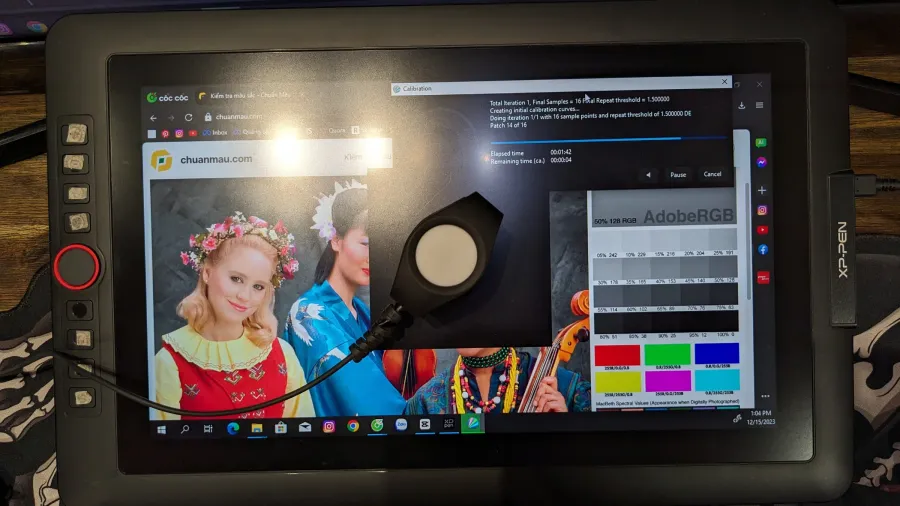
You draw on a Huion or Wacom, the colors look right on the tablet screen — open the same file on your main monitor or send it to a client and the color shifts noticeably: skin tones go orange, greens get darker than intended. The common question: can a pen display even be calibrated, or do you just have to eyeball it?
Can a pen display be calibrated?
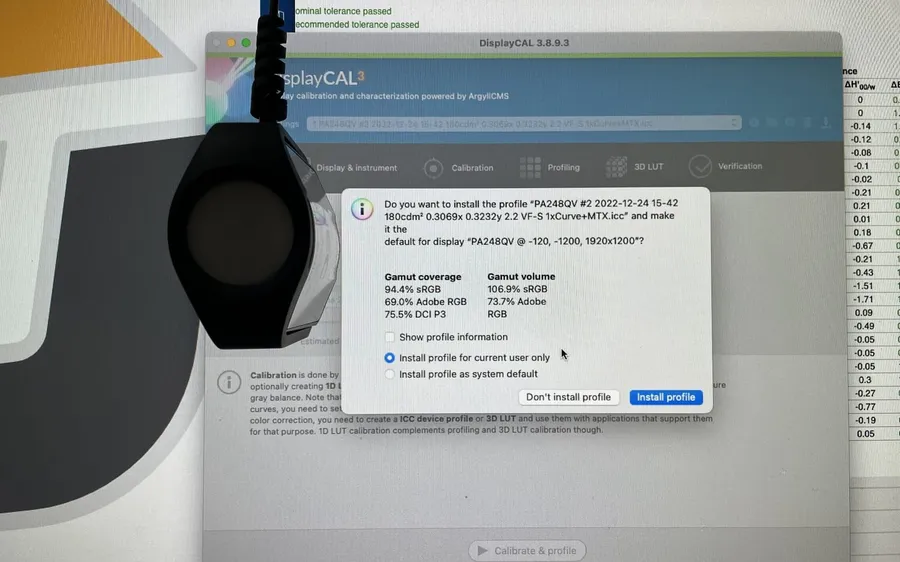
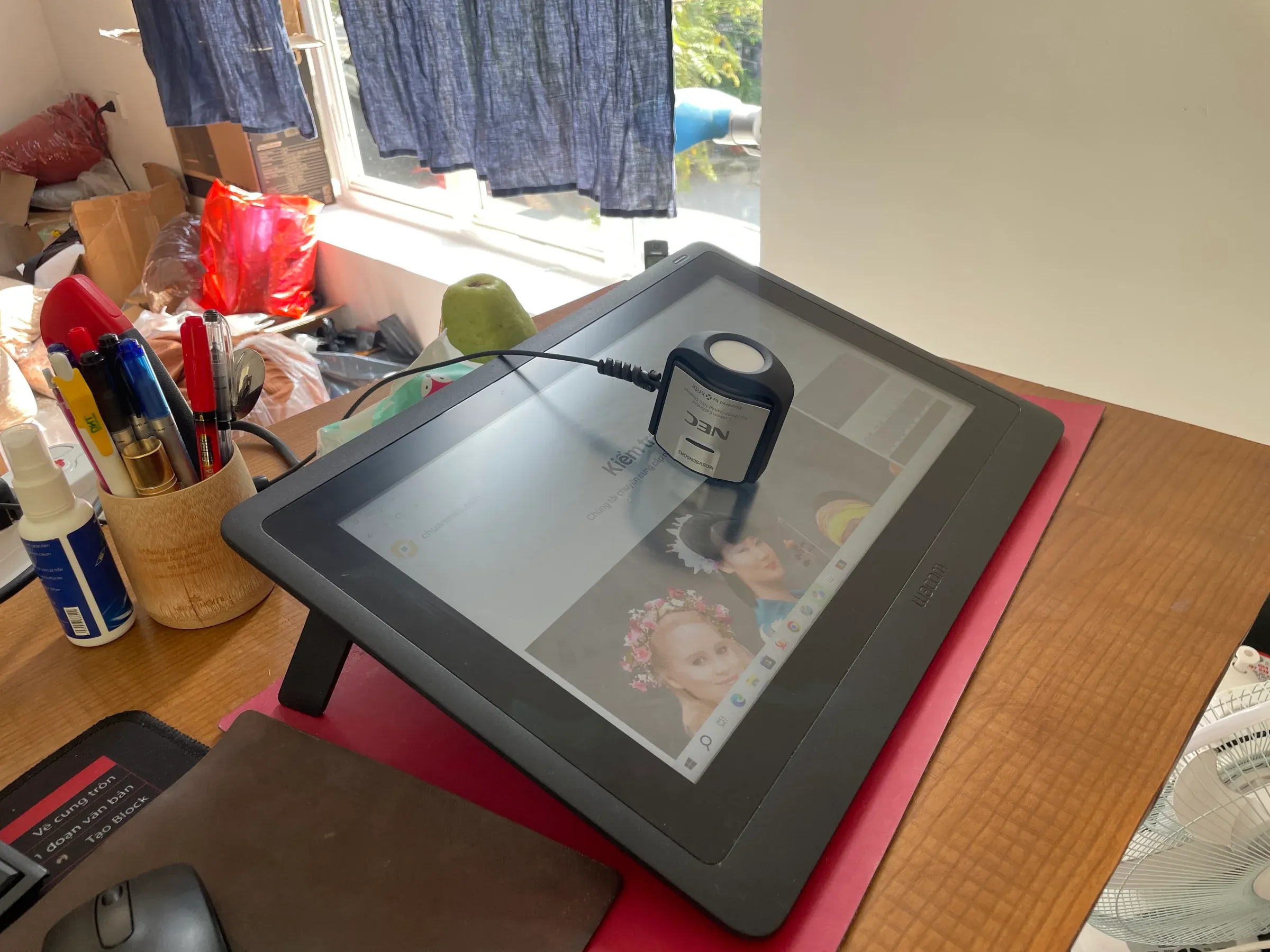
Yes. A pen display (Wacom Cintiq, XP-Pen, Huion Kamvas…) is, underneath the touch layer and pen input, a regular external monitor using the same LCD or OLED panel technology as a PC or laptop screen. A colorimeter measures light coming off the panel — it doesn’t care whether there’s a pen on top — so the same calibration process and ICC profile export applies.
Signs your pen display needs calibrating
- Colors look right on the tablet, wrong on another screen — the most common tell, especially when the two displays have never been calibrated to the same reference.
- Factory colors look unusually saturated or punchy — many pen displays ship with boosted saturation out of the box to look good in demos, not to represent accurate color.
- A slight yellow or blue tint after months of use — panels drift over time, the same way regular monitors develop a yellow tint.
- Brand new, never calibrated — worth calibrating from day one to have a reference point, rather than waiting until the drift becomes obvious.
Two things to know before calibrating a pen display
1. Turn off built-in color presets before measuring. Many pen displays ship with presets like “Vivid”, “Eye-care” or “Game mode” that apply the manufacturer’s own gamma and color-temperature adjustments. Calibrating while one of these is active produces an unstable ICC profile — switch to the “Standard” or “sRGB” mode (if available) first.
2. Etched anti-glare glass reduces perceived saturation. Some higher-end models use an etched (matte) glass layer to cut glare and reduce friction while drawing. That coating scatters light slightly, making colors look a touch “softer” than on glossy glass — a physical trade-off of the design. The ICC profile correctly measures what the panel emits, but it can’t fully compensate for how the coating changes perceived color. For work that needs absolute accuracy at final color review, cross-check against a reference monitor without the matte coating.
How we calibrate pen displays
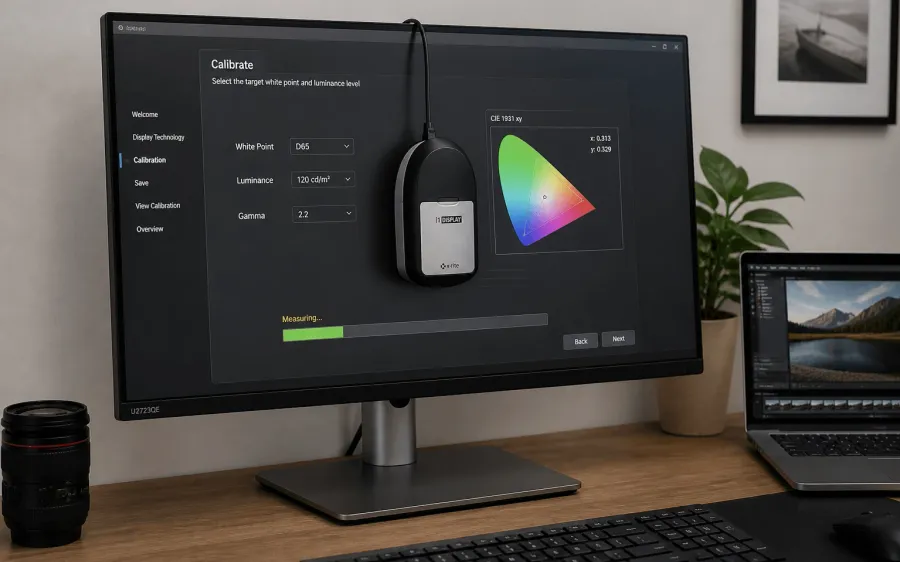
Same as PC monitor calibration: measured with an X-Rite i1Display Pro, a dedicated ICC profile exported for your exact device, installation walkthrough included, one month warranty. Available at either of our two locations in Hanoi, or on-site if you’d rather not disconnect and bring the tablet in. See pricing.
Not sure what an ICC profile actually does or when to install one? Read what is an ICC profile before calibrating your pen display.