· Updated · Blog · 5 min read
Why Is My Monitor Showing a Yellow Tint? Can It Be Fixed?
Monitor showing an inaccurate yellow-tinted color? Here are the real causes and how to fix them — from a DIY check to professional calibration.
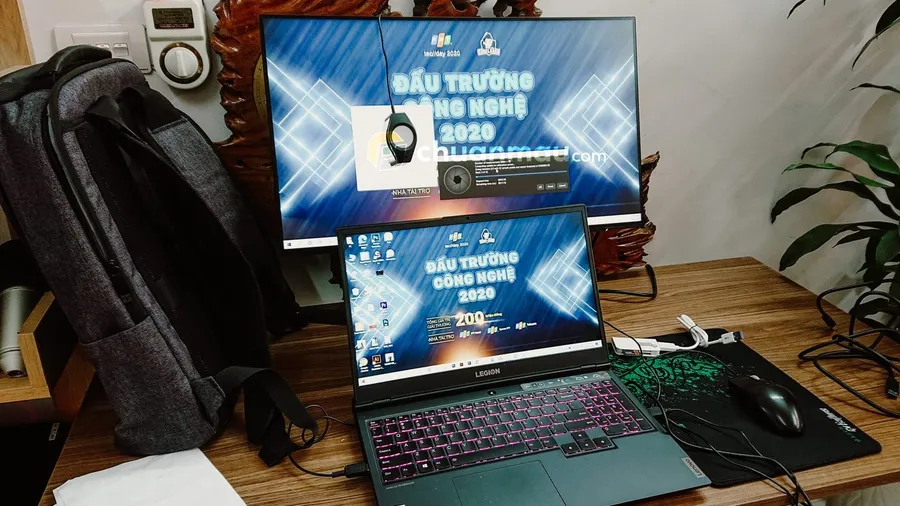
You turn your screen on and everything looks… a little more yellow than it should? White web pages look like aged paper, skin tones in photos read too orange, and greens have a strange warm cast?
This is a yellow-tinted monitor — one of the most common issues designers, photographers, and video colorists run into. This post covers what’s actually causing it and, more importantly, whether it’s fixable and how.
What a yellow-tinted monitor looks like
Before diving into causes, make sure you’re actually dealing with this problem:
- Pure white shows a subtle yellow or orange cast
- Daylight outdoor photos look warmer than they should
- Blue tones look duller and darker than normal
- Comparing against a phone or another monitor makes the difference obvious
If that matches what you’re seeing, keep reading.
5 common causes of a yellow-tinted monitor
1. Natural aging
This is the number one cause — and it’s completely natural.
A monitor’s LED/CCFL backlight has a finite lifespan. After 3–5 years of regular use, the blue phosphor elements degrade faster than the red and green ones. The result: white loses its blue component and gradually shifts toward warm yellow.
This isn’t a defect — it’s physics. Every monitor eventually goes through this.
How to spot it: Your monitor is 3+ years old and the shift has been gradual, getting worse over time.
2. Color temperature set incorrectly
Monitors typically ship at 6500K (daylight — neutral white) by default. If someone — including you — went into the settings and lowered the color temperature to 5000K or below, the screen will look noticeably warmer.
Some monitors also have an Eye Care / Night Mode / Reading Mode that automatically lowers color temperature to “protect your eyes” — at the cost of accurate color.
How to spot it: Check Color Temperature in the monitor’s OSD menu — if it’s set below 6500K, or a Warm mode is enabled, that’s your cause.
3. A wrong or corrupted ICC profile
An ICC profile is a data file that tells the operating system how your specific monitor “sees” color, so it can compensate for accuracy.
If the active ICC profile doesn’t actually match your monitor — say, it’s the wrong model’s profile, or a stale one left over from before a clean install — colors will drift, usually toward yellow or blue depending on the case.
How to spot it: This tends to show up right after reinstalling Windows/macOS, or after plugging in a new monitor.
4. GPU color output
Graphics drivers occasionally adjust color output on their own. Some AMD and NVIDIA cards ship with “color enhancement” features or default color filters that aren’t optimally set.
A faulty or loose HDMI/DisplayPort cable can also introduce color signal errors on its own.
How to spot it: Starts suddenly after a GPU driver update, or after swapping cables.
5. Ambient lighting
This isn’t actually a monitor problem, but it’s easy to mistake for one.
If your room uses warm-white lighting (under 4000K), the light reflecting off your screen will make colors look yellow-tinted even though the display itself is perfectly normal. The same happens sitting near a window at sunset.
How to spot it: The issue disappears when you turn off the room lights or work during the day under neutral light.
Can it be fixed? — A straight answer
It depends on the cause.
| Cause | Fixable yourself? | Needs a professional? |
|---|---|---|
| Wrong color temperature | ✅ Yes — adjust the OSD | No |
| Wrong ICC profile | ✅ Yes — reinstall the correct one | No |
| GPU driver issue | ✅ Yes — reinstall the driver | No |
| Ambient lighting | ✅ Yes — change room lighting | No |
| Panel aging | ⚠️ Partially fixable by hand | Needs professional calibration |
For an aging panel, you can go into the OSD and manually compensate — but manual adjustment can’t match what a measurement-based calibration does. The reason: the human eye isn’t sensitive enough to catch small per-channel RGB shifts, while a measurement device reads them directly.
How to self-diagnose before doing anything else
Work through these in order to narrow down the cause:
Step 1 — Reset the OSD to factory defaults Go into the monitor’s menu and find “Factory Reset” or “Reset to Default.” If the yellow tint disappears after the reset, the cause was a changed OSD setting.
Step 2 — Check Night Mode / Eye Care Turn off every eye-protection mode on both the monitor and the OS (Windows Night Light, macOS Night Shift, f.lux).
Step 3 — Check the active ICC profile
- Windows: Settings → Display → Advanced display → Display adapter properties → Color Management
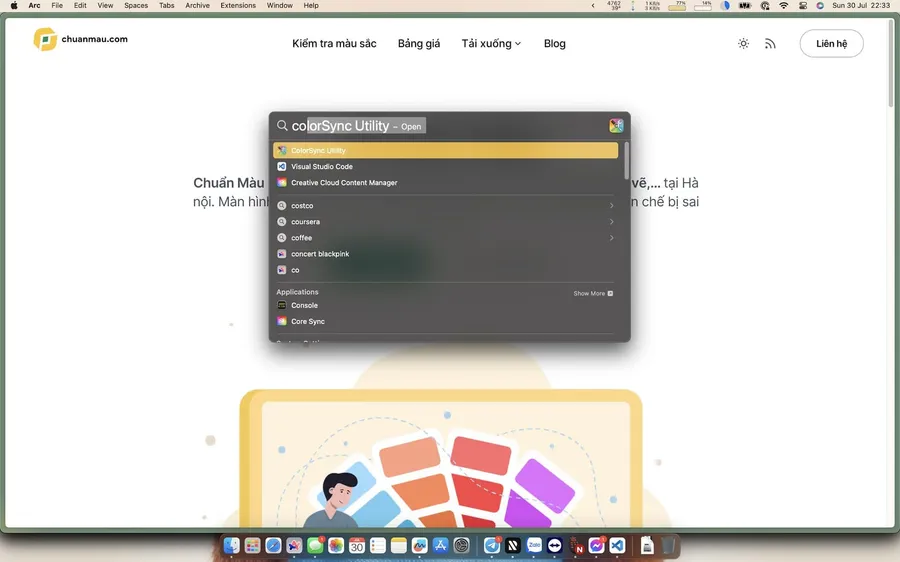
- macOS: System Settings → Displays → Color Profile
If you see an unfamiliar profile name or “Generic RGB,” try switching to sRGB IEC61966-2.1 and see if it improves.
Step 4 — Compare against your phone Open the same image on your phone and on the monitor. If there’s still a clear difference after resetting the OSD and checking the ICC profile, your monitor needs to be calibrated.
When it’s time for professional calibration
Graphic design and video editing demand absolutely accurate color. Photo: Unsplash
If:
- You’ve tried every DIY step and the color is still off
- Your work depends on accurate color (print design, photo retouching, video editing)
- Your monitor is 3+ years old and has never been calibrated
- You just bought a new monitor and aren’t sure the factory calibration is trustworthy
…then professional calibration is the next worthwhile step.
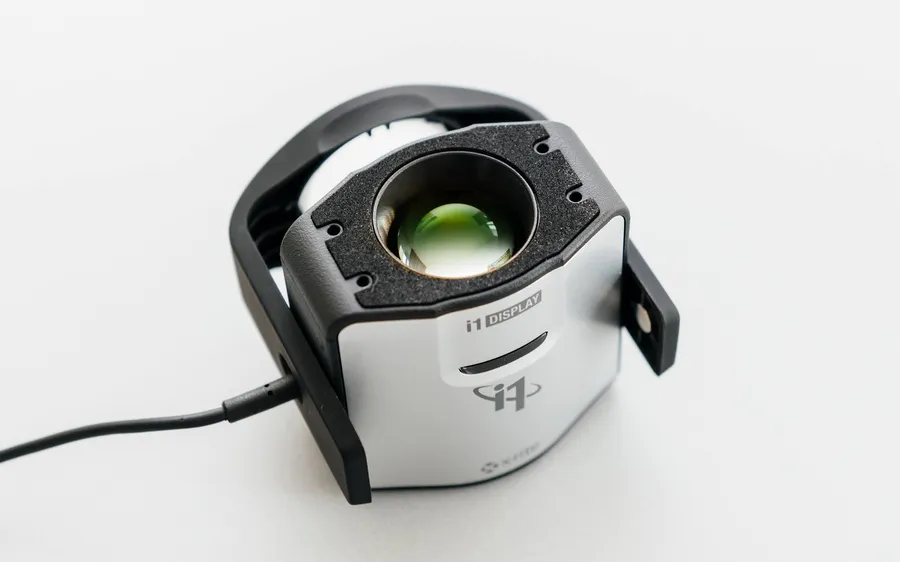
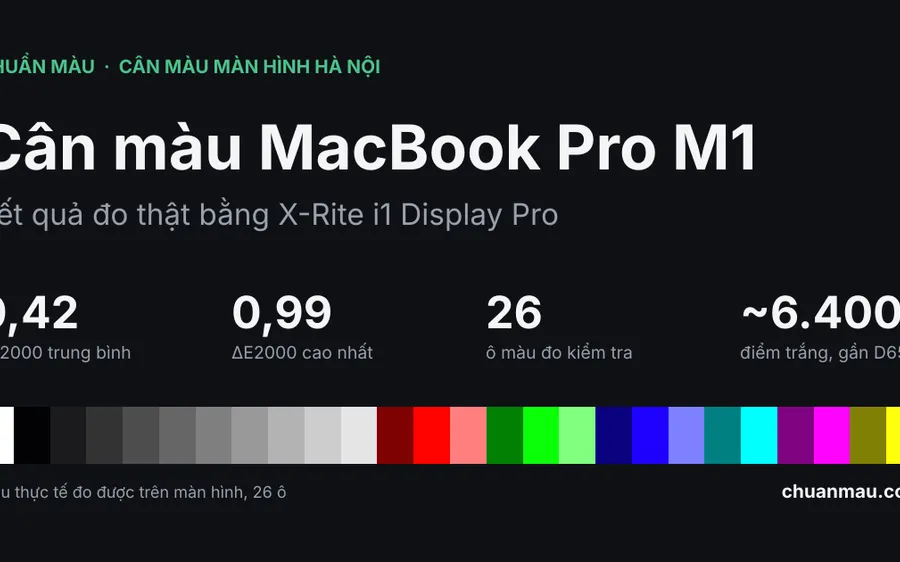
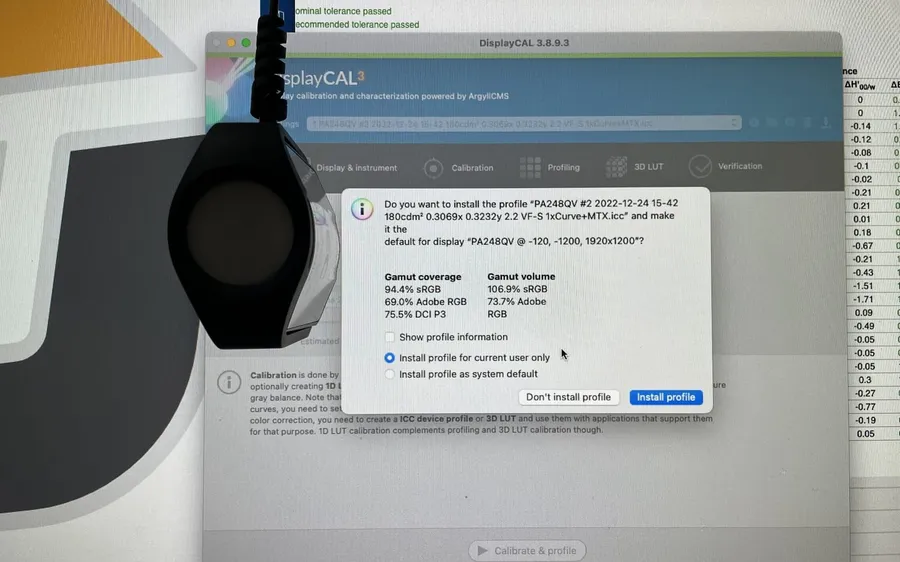
Using an X-Rite i1Display Pro, a technician measures every color point on your specific screen and generates a custom ICC profile. The resulting ICC file is saved and can be reinstalled anytime after a clean OS install, with no need to redo the measurement.
Bottom line
A yellow-tinted monitor is fixable in most cases — you just need to pin down the actual cause. Start by checking the OSD and the ICC profile yourself, and use the online color test to see where the tint shows. If that doesn’t resolve it, professional calibration is the most reliable, long-term fix.
If you’re in Hanoi and want to know exactly what your monitor needs, contact Chuẩn Màu for a free assessment — no cost, no obligation. We’ll tell you upfront whether your screen is even worth calibrating before you decide anything.